Metadata intact
Covers, album, and artist info from your rips display properly — not a wall of file names.
Your library
The shelf of CDs holds your era, but cars and commutes lost their CD slots years ago. Rip them once, import to Otoha, and the collection is back in your pocket with covers and track info intact.
Free playback, no ads. Your files stay on your phone.
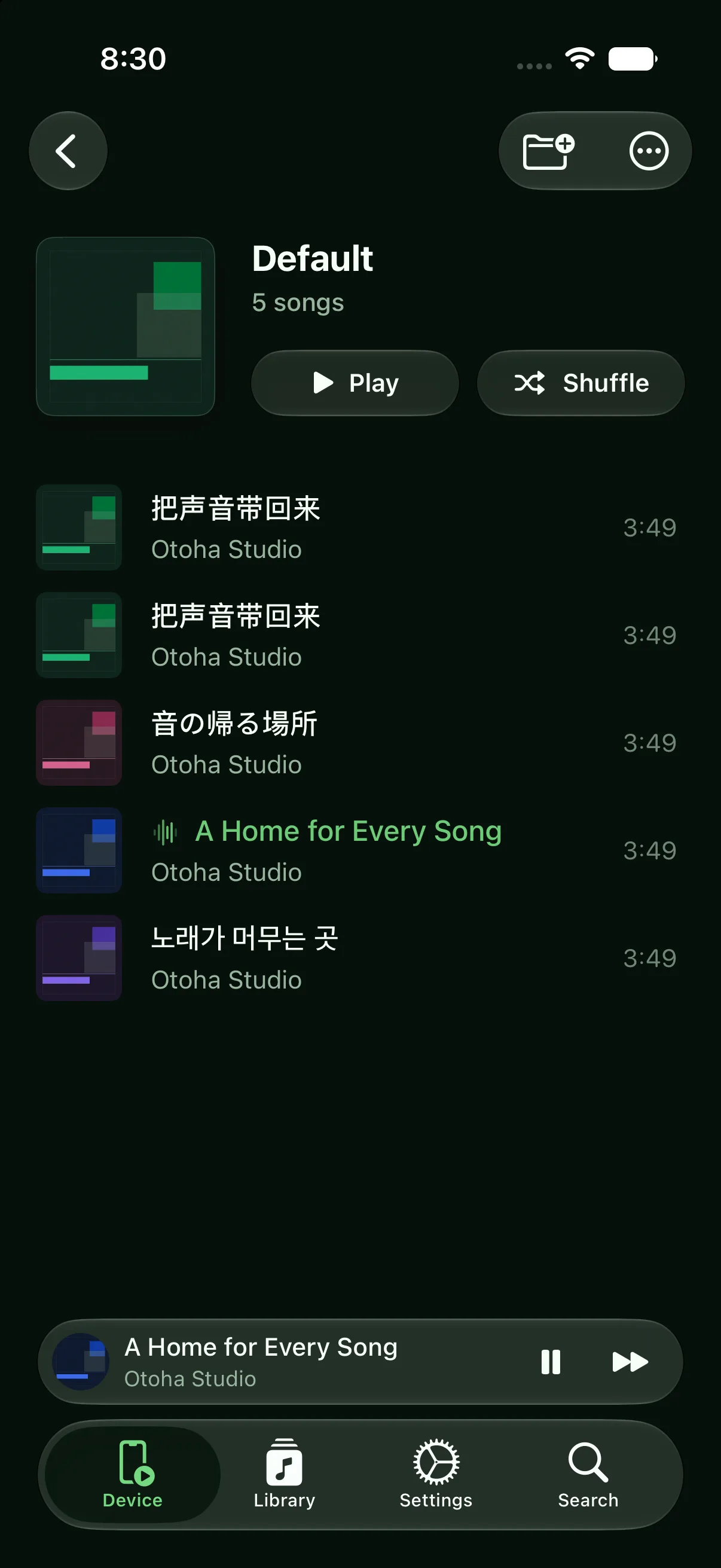
Rip once, listen everywhere.
Convert CDs to MP3 or lossless files — the Music app on macOS and Windows Media Player both do this built-in.
Move the files over via Files, AirDrop, or a cloud drive, then batch-import into Otoha.
Artwork and track info are read automatically. Build playlists by decade or artist and start reminiscing.
Covers, album, and artist info from your rips display properly — not a wall of file names.
Many older albums simply are not on streaming. Your rips play forever, platform-free.
Lyrics can be matched or imported, so the old songs can be sung along too.
Transfer the ripped MP3/M4A/WAV files to your phone via Files, AirDrop, or a cloud drive, then import them into Otoha. Artwork and track info load automatically.
That is exactly what owning files solves: rip the CD you own and it plays on your phone forever, independent of any platform catalog.
Yes. Track info can be edited in Otoha, and lyrics can be matched automatically.
Free playback, no ads. Your files stay on your phone.